Domain Search
 AI Domain Search
 Domain Transfer
 TLD List with Prices
 SSL Certificates
 Create a Website
 Google Workspace
 News
 Podcast
 Promos
 About Us
 Contact

An AAAA record points a domain name to an IPv6 address. In NicNames DNS, copy the exact address supplied by your hosting provider, check any A or AAAA records already using the same name, save one intentional change and verify that both DNS and the service answer correctly.
1. Copy the exact IPv6 address from the service
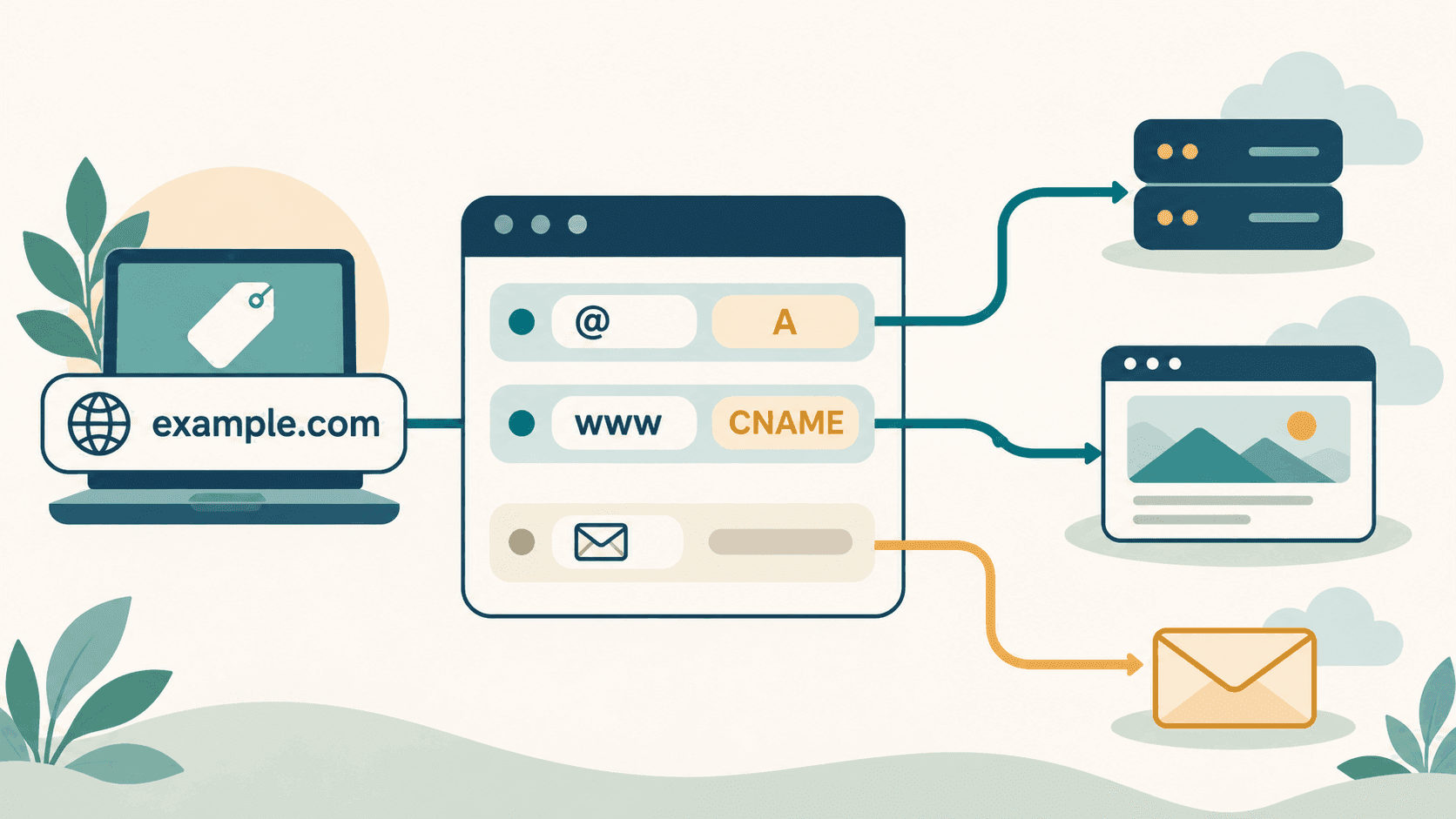
Start with the setup instructions for the website, application or server you are connecting. The provider should give you an IPv6 address and identify the domain or subdomain that should use it. Copy that value exactly. An AAAA record stores an IPv6 address; an A record stores an IPv4 address, while a CNAME points to another host name.
IPv6 addresses use colon-separated hexadecimal notation and may be shortened by compressing groups of zeros. Do not convert an IPv4 address, copy an example address from documentation or guess a value. If the provider gives you only an IPv4 address, use an A record instead. Our guide to creating a NicNames subdomain with A or CNAME explains those alternatives.
2. Confirm the active DNS zone and existing routes
Open ClassicDNS, select the domain and review Name-Servers. If it uses NicNames Free Name-Servers, open DNS Records → Manage. If custom nameservers are active, make the change at the DNS provider named by those servers; editing an inactive NicNames zone will not change the public answer.
Review A, AAAA and CNAME rows for the intended name before adding anything. A and AAAA records can coexist so the same host is reachable over IPv4 and IPv6. If you keep both, each address should reach the intended service. Some visitors may try the IPv6 route, so a stale or incorrect AAAA record can break the site for them even when the A record still works.
3. Add the AAAA record once
Choose + Add record in the NicNames DNS table. Enter the intended name, such as www or app, using the same name format shown by the editor. For the bare domain, follow the zone's existing root-name notation; if it is unclear, ask Support instead of guessing. Keep the displayed TTL unless the service gives a specific reason to change it.
Change Type to AAAA, then paste the provider's value into IPv6 address. Compare the name and address with the provider's setup screen before saving. Do not add a CNAME at the same name, and do not create repeated AAAA rows as a retry. Save the table once after the row is complete.
4. Verify DNS and the service separately
Use the provider's connection screen or a DNS lookup to check the public AAAA answer for the full host name. Then open the site or application over HTTPS and confirm that it reaches the intended service with a valid certificate. DNS can be correct before the application or certificate is ready, so treat those checks separately.
If IPv4 works but IPv6 does not, compare the public AAAA answer with the provider's current value and confirm that the server accepts IPv6 traffic for that host. Also check the authoritative nameservers and any older AAAA row before changing another record. Our DNS troubleshooting checklist helps distinguish an incorrect authoritative record from a cached response. If the required name or address is uncertain, contact NicNames Support before removing working records.