Domain Search
 AI Domain Search
 Domain Transfer
 TLD List with Prices
 SSL Certificates
 Create a Website
 Google Workspace
 News
News Podcast
 Promos
 About Us
 Contact
A blog can live at blog.example.com while your main website and email keep their current setup. To connect that address to Webflow, add it to your Webflow site, copy the DNS records Webflow shows, and place them in the DNS zone that actually serves your domain.
1. Add the subdomain in Webflow
You need control of the domain and a Webflow Site plan that supports a custom domain. In Webflow, open Site settings → Publishing → Production, choose Add a custom domain and Manually add domain, then enter the complete blog address, such as blog.example.com. Webflow shows the DNS records for that site. Copy its current CNAME target and one-time TXT verification value rather than reusing values from another project.
This setup changes only the chosen subdomain. Your root website and email can stay where they are. If blog.example.com already serves something, plan that service's move before replacing its DNS records.
2. Check where the domain's DNS is hosted
In NicNames, open Domains → ClassicDNS and select the domain. Read Name-Servers. If it shows Free Name-Servers, open DNS Records → Manage. If it shows Custom Name-Servers, make the records at the DNS provider named by those servers; changing an inactive NicNames zone will not connect the site. Our domain lookup guide can help you identify the delegated nameservers.
3. Add the CNAME and ownership TXT records
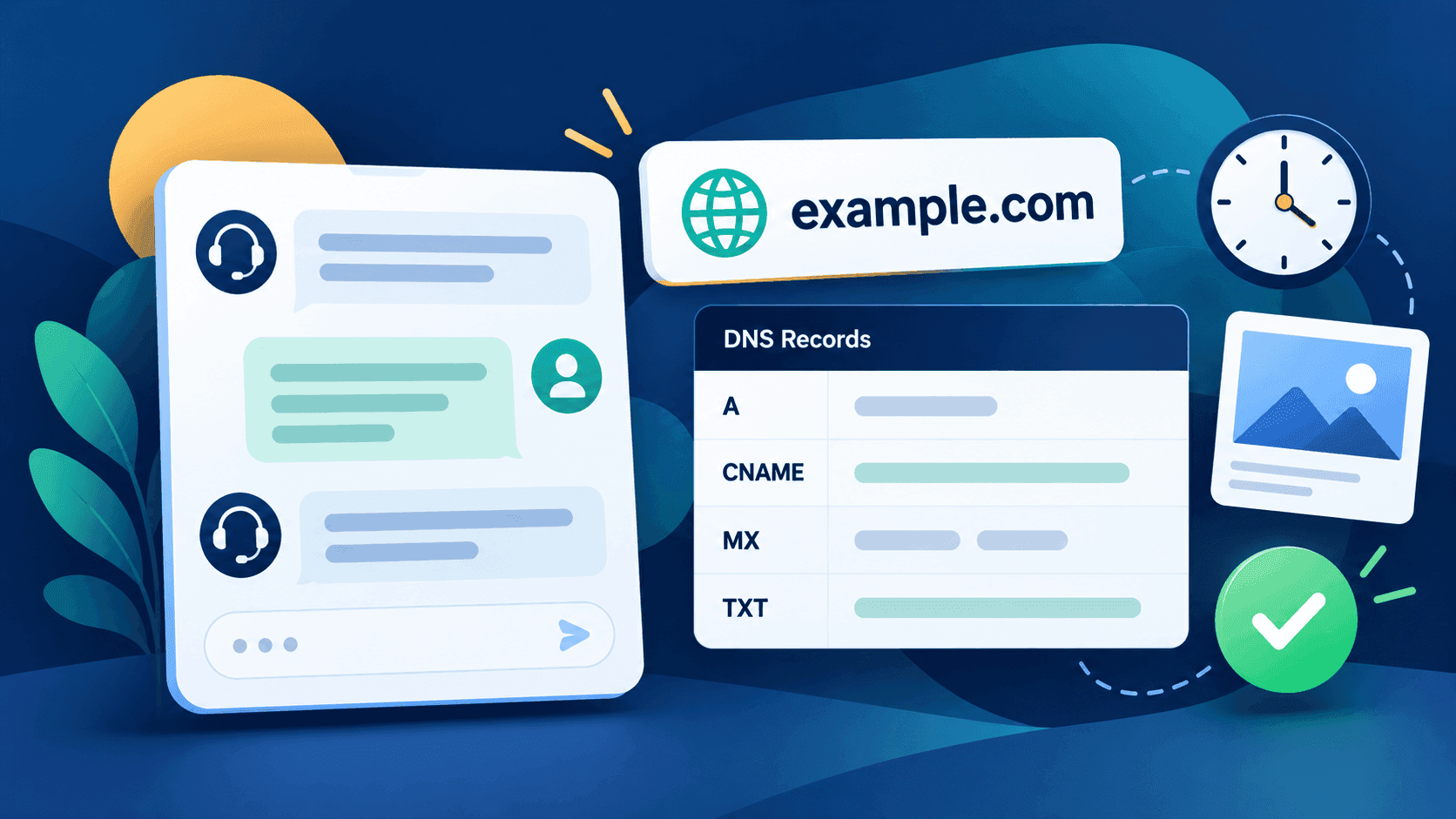
For a NicNames Free Name-Servers zone, select + Add record and choose CNAME. Enter blog in Name for blog.example.com, and enter Webflow's current target in Host alias. Webflow currently documents cdn.webflow.com for custom subdomains, but use the exact target displayed in your site's Publishing settings. Keep the existing TTL unless you have a specific reason to change it.
Add a separate TXT row for Webflow's one-time ownership check. Enter the exact host label and one-time-verification= value shown by Webflow, using NicNames' Name and Text fields, then select Save. Webflow commonly uses _webflow as the TXT host, but confirm the label in your own project. Do not put the verification token in the CNAME target. A CNAME cannot coexist with another record at the same blog hostname; review and intentionally replace conflicting old records only when you are ready to move that subdomain. Leave unrelated root, www, MX and email records alone.
4. Verify and publish the Webflow site
Return to Site settings → Publishing → Production in Webflow. Use Check status and Verify domain. Once Webflow confirms ownership, select the blog address in the Publish menu and publish to selected domains. Check the exact public blog URL in a browser. DNS caches can delay the change; Webflow says full propagation can take up to 48 hours. If Webflow reports an incorrect record, compare the active nameservers, blog CNAME target and verification TXT host/value with its current settings. The NicNames DNS troubleshooting guide helps distinguish a wrong authoritative record from an older cached answer. If the NicNames form rejects a record, contact NicNames Support before guessing a replacement.