Domain Search
 AI Domain Search
 Domain Transfer
 TLD List with Prices
 SSL Certificates
 Create a Website
 Google Workspace
 News
News Podcast
 Promos
 About Us
 Contact
To use a NicNames domain without “www” for a Vercel site, add the bare domain to your Vercel project, then point its active DNS A record to the IPv4 address Vercel provides. First check which nameservers host your DNS and what the root currently serves.
Get the value from your Vercel project
In Vercel, open the project, then Settings → Domains. Add the bare domain, such as example.com, without www. Vercel shows the A-record value recommended for that project. Copy the displayed IPv4 address rather than relying on an address from an older tutorial. If Vercel asks for a separate ownership-verification TXT record, follow the value shown for your domain before expecting the connection to become ready.
Check the active DNS and root record in NicNames
Sign in to NicNames and open ClassicDNS. Choose the domain’s Settings page and check Name-Servers. If it uses NicNames Free Name-Servers, open DNS Records → Manage. If it uses custom nameservers, make the DNS change at the provider named there; a record saved in a different DNS zone will not control the live website.
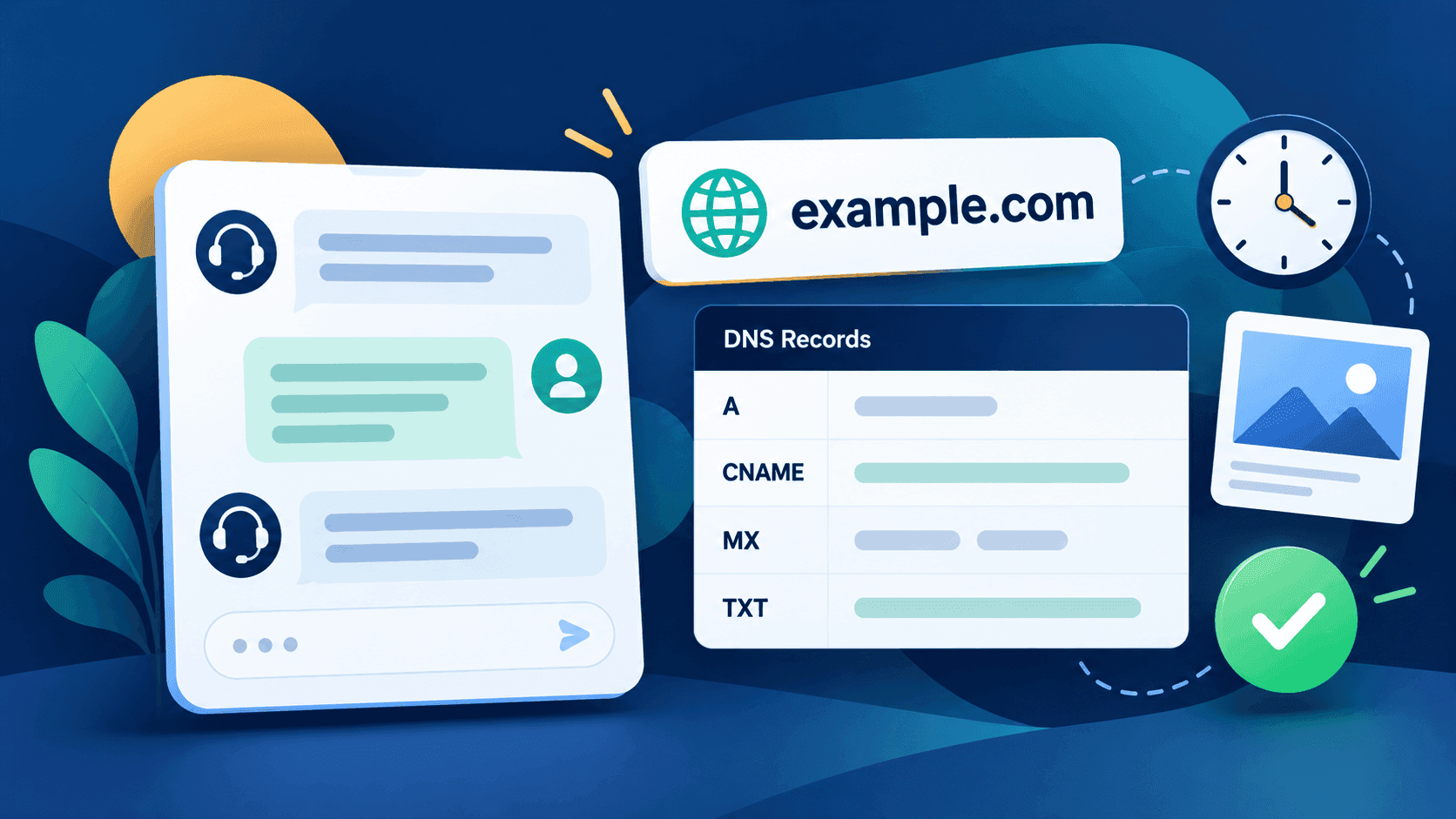
The NicNames editor shows Name, TTL, Type and Data. Find the A row whose Name is the bare domain itself, not www or another subdomain. If that row exists, replace its IPv4 Data with the address Vercel displays, then save. If there is no root A row, use + Add record, choose A and enter the root name using the editor’s zone notation. Confirm the new row represents the bare domain before saving; if the Name field’s root format is unclear, ask NicNames Support rather than guessing.
Check for other A or AAAA records at the same root name before changing anything. An old IPv4 or IPv6 route can send some visitors to a different website. Plan the cutover and preserve unrelated MX and TXT records used for email or verification. A root A-record change does not automatically configure www; add that hostname to Vercel separately if you want to use it, and set a redirect to your preferred address there.
Verify the live result
Return to Vercel’s project Settings → Domains and wait for its configuration and certificate checks. Compare the public A answer for the bare domain with the project’s recommended value, then open https:// followed by your domain and confirm the intended site loads with a valid certificate. If the previous destination still appears, check the authoritative nameservers, the saved A and any conflicting AAAA records before making another edit. Our DNS troubleshooting checklist helps separate an incorrect authoritative record from a cached older answer. DNS changes can take time to reach resolvers according to the prior record’s TTL.